

Reach out to support@sosha.ai with any additional questions or submit a ticket below.
Submit ticketHow to Update Your Account Security Settings
Learn how to reset your password if you can't log in, change your password from your account settings, and enable two-factor authentication to add an extra layer of security to your SoSha account.
How to Reset Your Password if You Can't Log In:
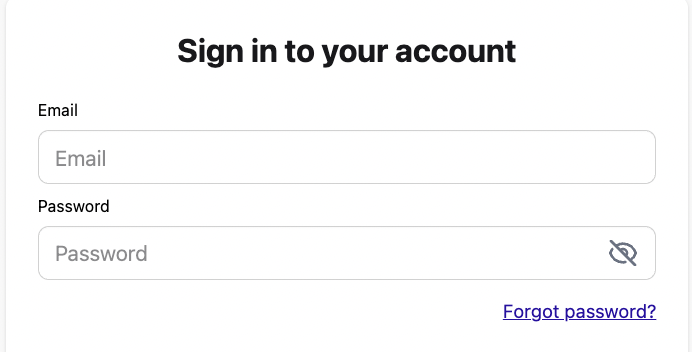
At the log in portal, app.sosha.ai/auth/sign-in, select the ‘Forgot Password?’ button.
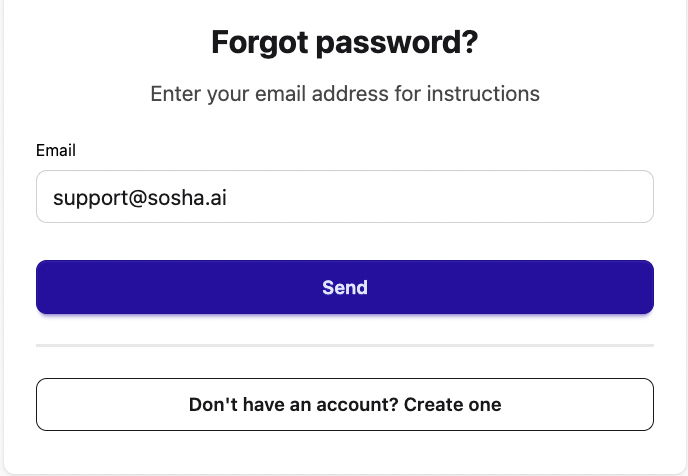
Enter your account’s email address and click “Send”. We will send a password reset link to the account email within a few seconds.
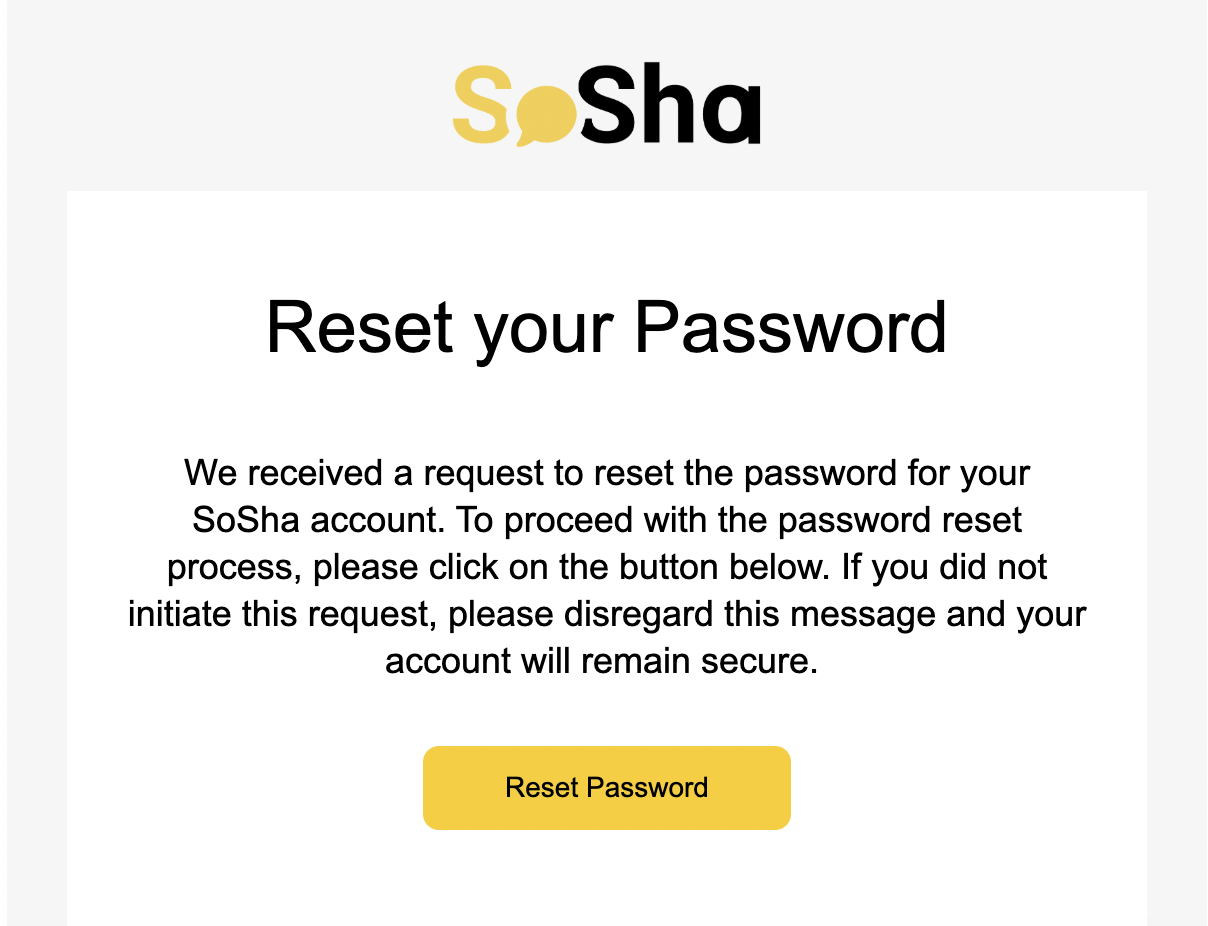
Click “Reset Password” in the email to enter and save a new password for your account.
If you are logged into your SoSha account, your password can be reset at any time via the account menu.
How to Change Your Password in Account Settings:
Click the icon in the top right corner, and select Settings from the dropdown menu.

Next, click the Account Settings tab on the left-hand side menu.

Click Open account settings.

You'll be taken to a new page where you can change the password and enable two-factor verification.

Select the Change button and enter current password followed by the new password.

How to Enable Two-Factor Authentication:
Enable two-factor authentication by clicking Turn On.
Scan the QR code with an authenticator app and then enter the 6-digit code it shows.
